Features / App passwords and two-step verification
App passwords and two-step verification
What it is for
Section titled “What it is for”- Two-step verification (2FA): besides the password, sign-in asks for a second step. In the panel, the second step is a code we send to the account email. If your password leaks, whoever has it still cannot sign in.
- App password: a separate password that you create only for one app or service (an email reader, a sending system), in place of your password. If it leaks, you delete just that one, without changing your main password.
Who needs 2FA
Section titled “Who needs 2FA”- Account owner in the panel: mandatory, and it cannot be turned off. The owner creates mailboxes and changes DNS: breaking into their panel is breaking into everything.
- Mailboxes: optional, by authenticator app (TOTP), on the mail server itself. How it works with the webmail: to be confirmed. This does not change with the panel’s email code.
Banxmail does not use SMS as a second factor, because it is easy to intercept. Physical security key (like a YubiKey): to be confirmed.
The email code (the default)
Section titled “The email code (the default)”You don’t need to download or set up anything. The account email was already confirmed at sign-up, so email 2FA starts turned on.
How to sign in: on the Sign in screen, step 1 asks for email and password; step 2 asks for the code that arrived at the account email. The code has 6 numbers, is valid for 10 minutes and allows 5 attempts. The exact field name: to be confirmed on the real screen.
Careful: if the account email is a mailbox of the same account at Banxmail, the code only arrives while that mailbox works. If the domain or the mailbox has a problem, you are left without the code. The panel warns you and suggests an outside email or the authenticator app. Prefer an email outside the domain you set up here.
Use an authenticator app (optional)
Section titled “Use an authenticator app (optional)”For those who want more protection, the app (TOTP standard) can be turned on under Security. Its code changes every 30 seconds and does not depend on email.
- Install an authenticator app on your phone (Google Authenticator, Microsoft Authenticator, Aegis, 1Password, Bitwarden and others that follow the TOTP standard).
- In the panel, go to Security and choose to turn the app on (exact button name: to be confirmed).
- In the app, choose to add an account and scan the QR code. With no camera, type the Manual key.
- Type the six-digit code and click Confirm and enable.
- The panel shows the backup codes, once only. Save them and click I saved the codes, continue.
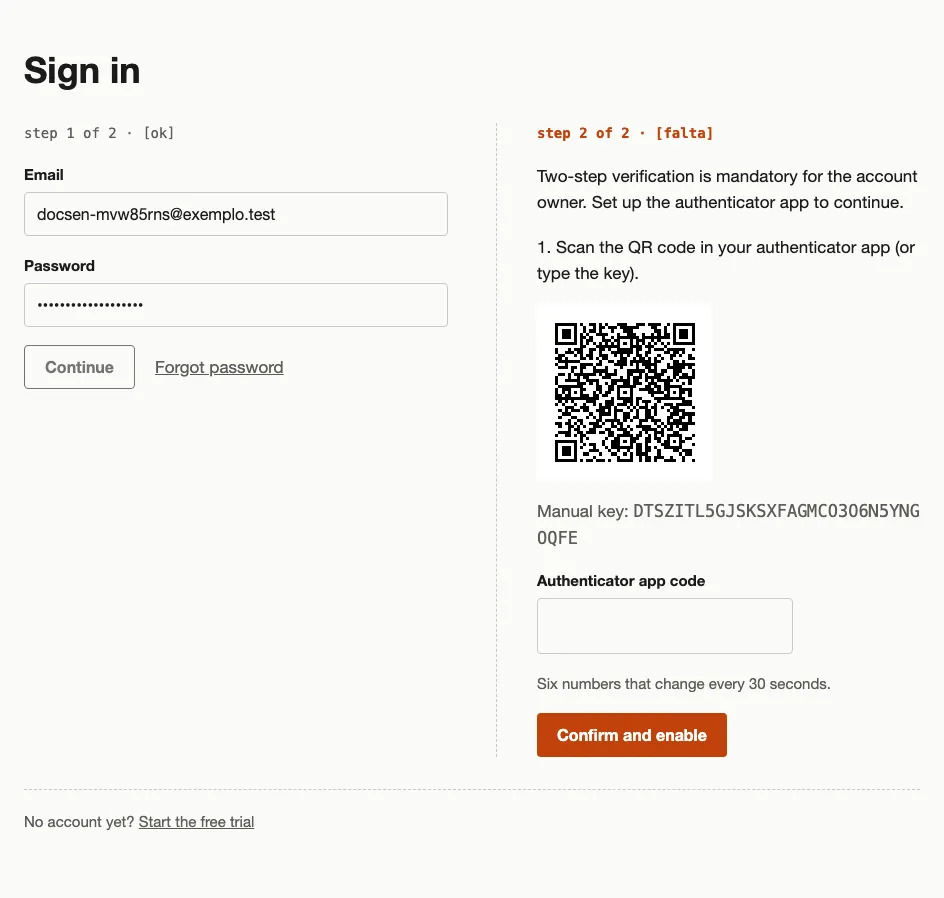
How to sign in afterwards, with the app: step 2 asks for the Authenticator app code (six numbers that change every 30 seconds). To use a backup code, type it in the same field (it looks like abcde-fghij).
Backup codes (app)
Section titled “Backup codes (app)”These are single-use codes for when you lose the phone with the app. Keep them away from your phone (a password manager, or paper in a safe place). The panel generates 10 when you turn the app on and shows, under Security, how many are still valid. To generate new ones (the old ones stop working), go to Security, type the current code from the app (or a backup code) and click Generate new backup codes.
The code does not arrive, or I lost access
Section titled “The code does not arrive, or I lost access”- Check spam and ask for another code.
- Check that the account email is right and that its mailbox works. If it is a Banxmail mailbox with a problem, use the authenticator app, if you already turned it on.
- Lost the phone with the app? Use a backup code, if you saved one, or sign in with the email code and register the new device.
- With no access to the account email and no backup code: there is no shortcut by phone or chat. Write to suporte@banxmail.com. The team asks, in this order, for a record you publish in the DNS of one of the account’s domains or, without it, three of four details the panel already has (last digits of the card or last payment, CPF or CNPJ, another mailbox on the account, month of sign-up), with a second person approving. The owner is warned first, and there is a wait of 24 hours (with DNS) or 48 hours (without). We never ask for a photo of an ID.
I forgot my password
Section titled “I forgot my password”On the Sign in screen, use Forgot password, type the account email and click Send the link. The link is valid for 1 hour. The reply screen is always the same, whether or not the email has an account, so it does not reveal who has one. 2FA still applies after the change.
App passwords
Section titled “App passwords”To use a mailbox in Thunderbird, Outlook or on your phone with two-step verification on, create an app password. Each password works for one mailbox and one device (or app), and you can revoke any of them at any time without changing the mailbox password. They live in the panel, under Security, per mailbox.
- Create: under Security, in the App passwords section, choose the Mailbox, type which device or app it is for (for example, “Thunderbird on the laptop”; it is only so you recognize it later) and click Create app password. The password appears only once: copy it right away, because Banxmail does not keep it. With no mailbox created yet, the section tells you to create one first.
- Use: paste it in place of the password in the app, with the full address as the username.
- See and revoke: the table shows the Mailbox, the Device or app and the date it was Created on. Click Revoke: the app stops working right away.
- Limit: each mailbox has a maximum number of app passwords. At the limit, the panel asks you to revoke one you no longer use (the number: to be confirmed).
- Splitting by protocol (read only, send only): the panel does not show that choice today.
Banxmail uses only app passwords, with no OAuth (“sign in with Google/Microsoft”). That is why apps that only accept OAuth do not work.
Common problems
Section titled “Common problems”- “Wrong code or already used”. Each code works once. With the email code, use the most recent one and ask for another if needed. With the app, wait for the next one, 30 seconds later, and if it persists check your phone’s clock: it must be on automatic time.
- I signed in, but the email app says “wrong password”. If the mailbox has 2FA or you want a password just for the app, use an app password (under Security). The panel password does not work in apps.
- Too many attempts. After several wrong passwords or codes, the panel makes you wait, and the wait grows with each mistake.